How to Install Grahamly on macOS
Follow these quick steps to install Grahamly Terminal on Apple Silicon (M1, M2, M3, M4) or Intel Macs and bypass the one-time Gatekeeper quarantine alert.
Mount the DMG & Move to Applications
After the download finishes, double-click the .dmg file to open it. Drag Grahamly Terminal into your /Applications folder.
macOS Gatekeeper Alert for Unsigned App
When you click to open the app, macOS may display this warning because this is currently an unsigned build:
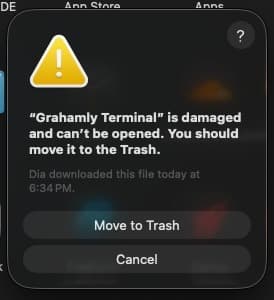
Do not move to Trash. The file is completely intact and safe. Modern macOS displays this generic warning for unsigned desktop binaries. Follow Step 2 below to unlock it.
Open Terminal & Run This Command
Open the built-in Terminal app on your Mac (press Cmd + Space, type Terminal, and press Enter). Then run this command:
/Applications if you saved or extracted the app into another folder.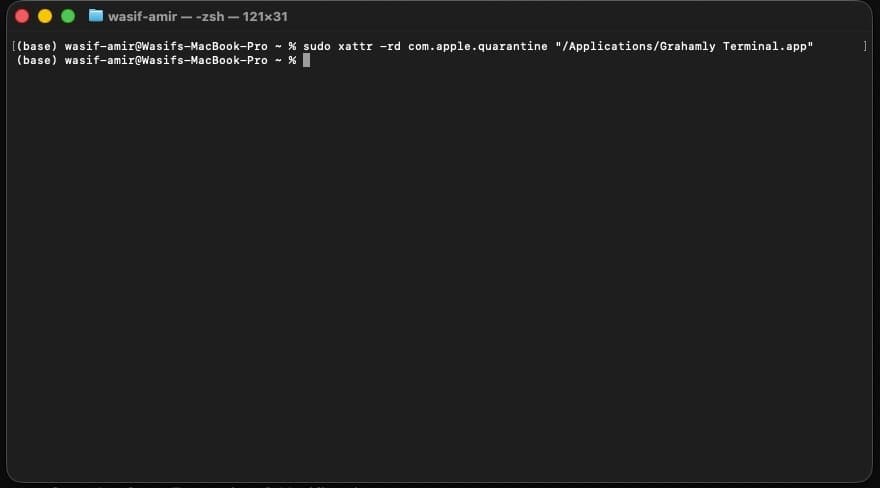
The command removes the com.apple.quarantine attribute placed by Gatekeeper on downloaded files.
Launch Grahamly Terminal & Grant Permissions
Now double-click Grahamly Terminal in your Applications folder to launch. When prompted by macOS, give it all the requested permissions.
Grahamly does not log or store any data on terminal. So it's completely private. Because it works locally on your computer to run complex Excel DCF models, automate spreadsheets, and parse sensitive filings on your machine, it needs system permissions to operate.
Ready to start modeling?
Sign in to Grahamly Terminal and start your 7-day risk-free trial.